 Fluid Wiki
1. Install Fluid Wiki on Windows
You need a Windows x64 computer and a local folder where you can keep your notes. An internet connection is needed to start the trial or activate a license. You do not need an AI account for this tutorial.
- Open the download section. Choose Download for Windows for the installer, or Get it from Microsoft Store to install through the Store.
- For the direct download, run
Fluid-Wiki-Setup-1.0.11-x64.exeand follow the installer prompts. For the Store option, complete installation in Microsoft Store. - Launch Fluid Wiki from the Windows Start menu. Open the gear icon, then License, to check your trial status. If you already purchased a license, enter your purchase email and the activation code from your email there.
The trial includes all desktop features for 30 days. After it expires, existing data remains available to view and export; adding and editing requires a license. Downloading the app does not require a purchase.
2. Explore the included sample vault
A vault is the local folder containing your knowledge base. The bundled sample vault lets you explore existing notes and visual documents before making your own.
- Click the folder icon at the top of the left activity bar (Vault), then choose Sample Vault.
- This guide uses the English sample,
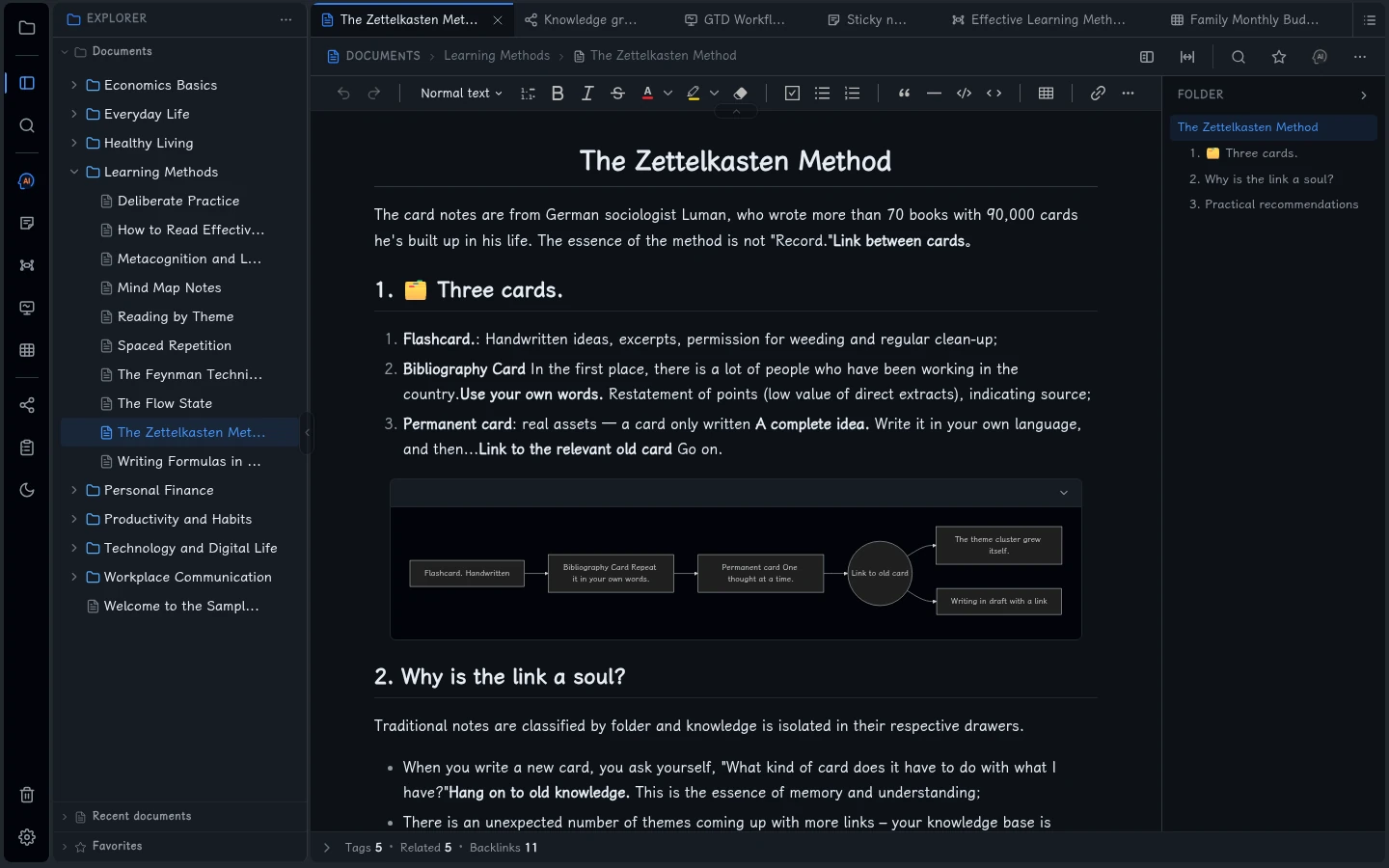
sample_vault_en. To follow the same titles, choose English in the app’s language setting, then open Sample Vault again. The sample language follows the app language. - Press Ctrl + P, type Zettelkasten, and open The Zettelkasten Method. You can also find it under Documents → Learning Methods in Explorer.
- Read the note and notice its headings and links. The whiteboard and mind map icons also lead to examples such as GTD Workflow and Effective Learning Methods.
These are example notes, diagrams and conversations, not content generated from your own work. Create a separate vault for the exercise below.
3. Create your own knowledge base
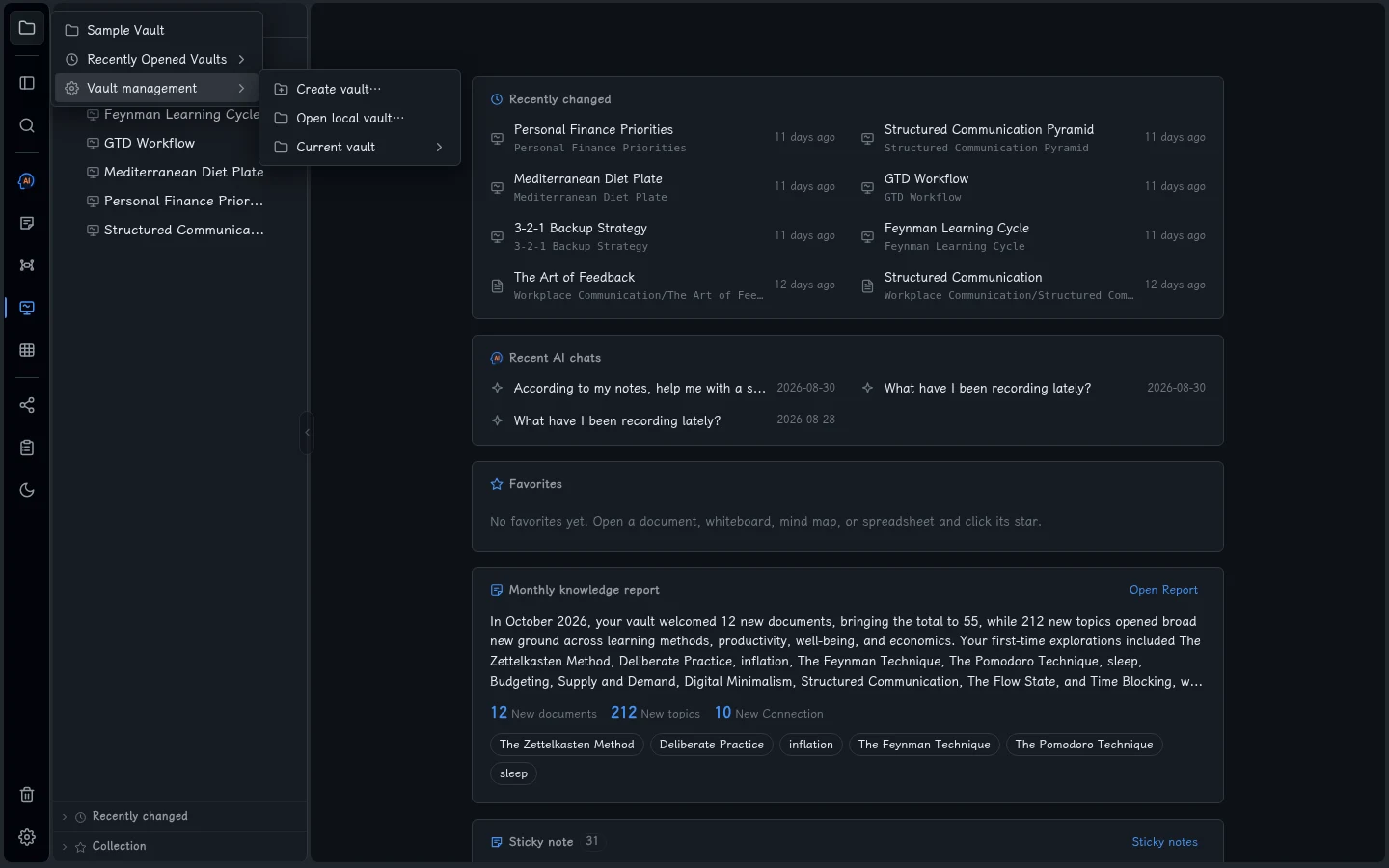
- Click Vault → Vault management → Create vault….
- Enter My Learning Vault as the name.
- Use Browse to choose a parent folder you own, for example your Windows Documents folder. Fluid Wiki creates a folder for the new vault inside that location.
- Click Create. The new vault opens with an empty Documents list. Keep its location: this is the folder you will back up.
To return later, use Vault → Recently Opened Vaults. If your vault is no longer listed, use Vault management → Open local vault… and select the existing vault folder itself.
4. Write and save your first note
- Open Explorer from the left activity bar. Next to Documents, click the New Document icon; hover over the icons to see their labels.
- Enter My first learning note and click Create. The
.mdextension is optional. - Click the editor below the heading and write the two lines below. Use the toolbar if you want to add a list, bold text or a heading.
- Press Ctrl + S to save. The editor also saves changes automatically. Open another document or close and reopen the note to check that your text is still there.
Today I learned: explain an idea in my own words.
Next action: spend 15 minutes reviewing this note tomorrow.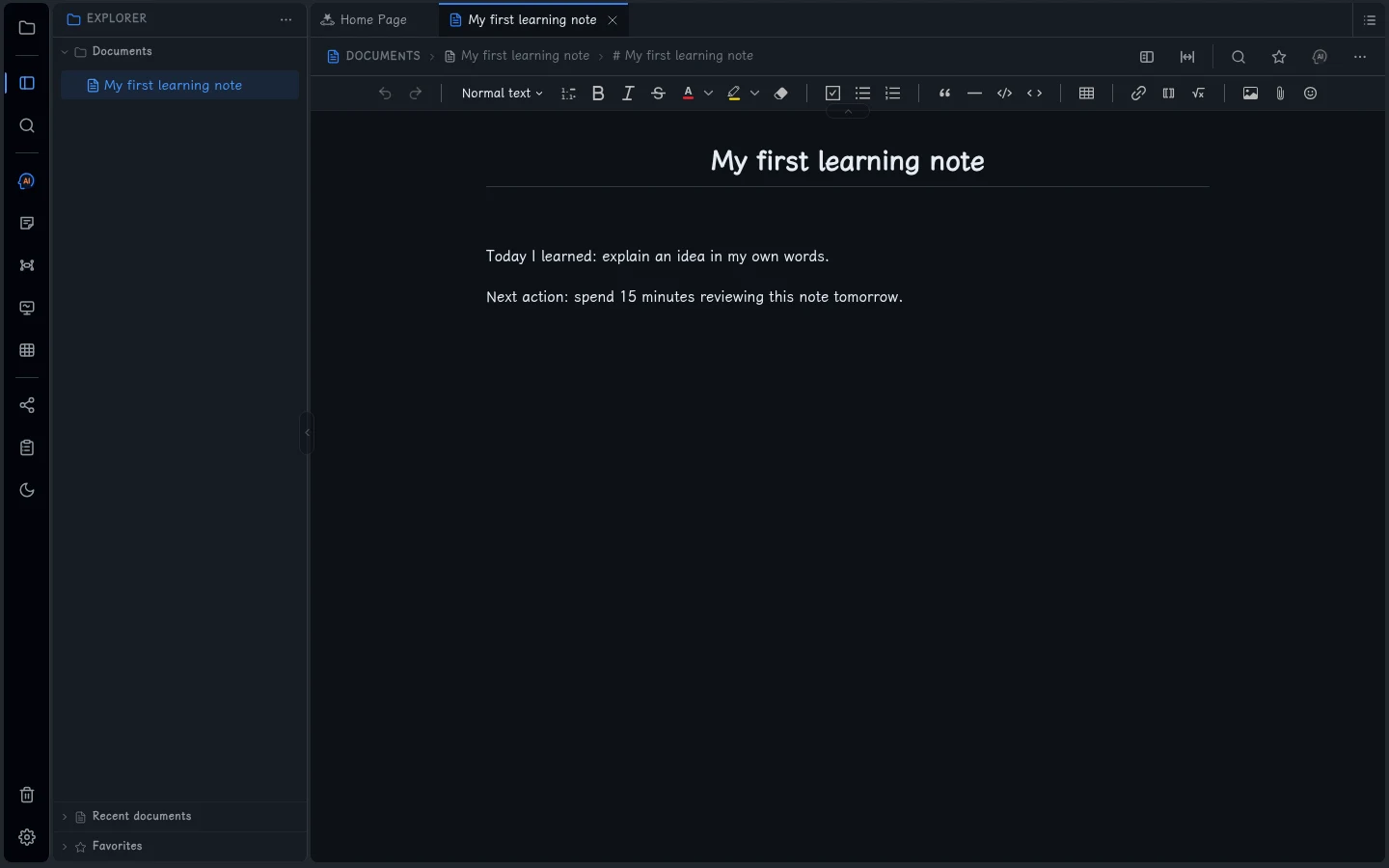
5. Find your note again
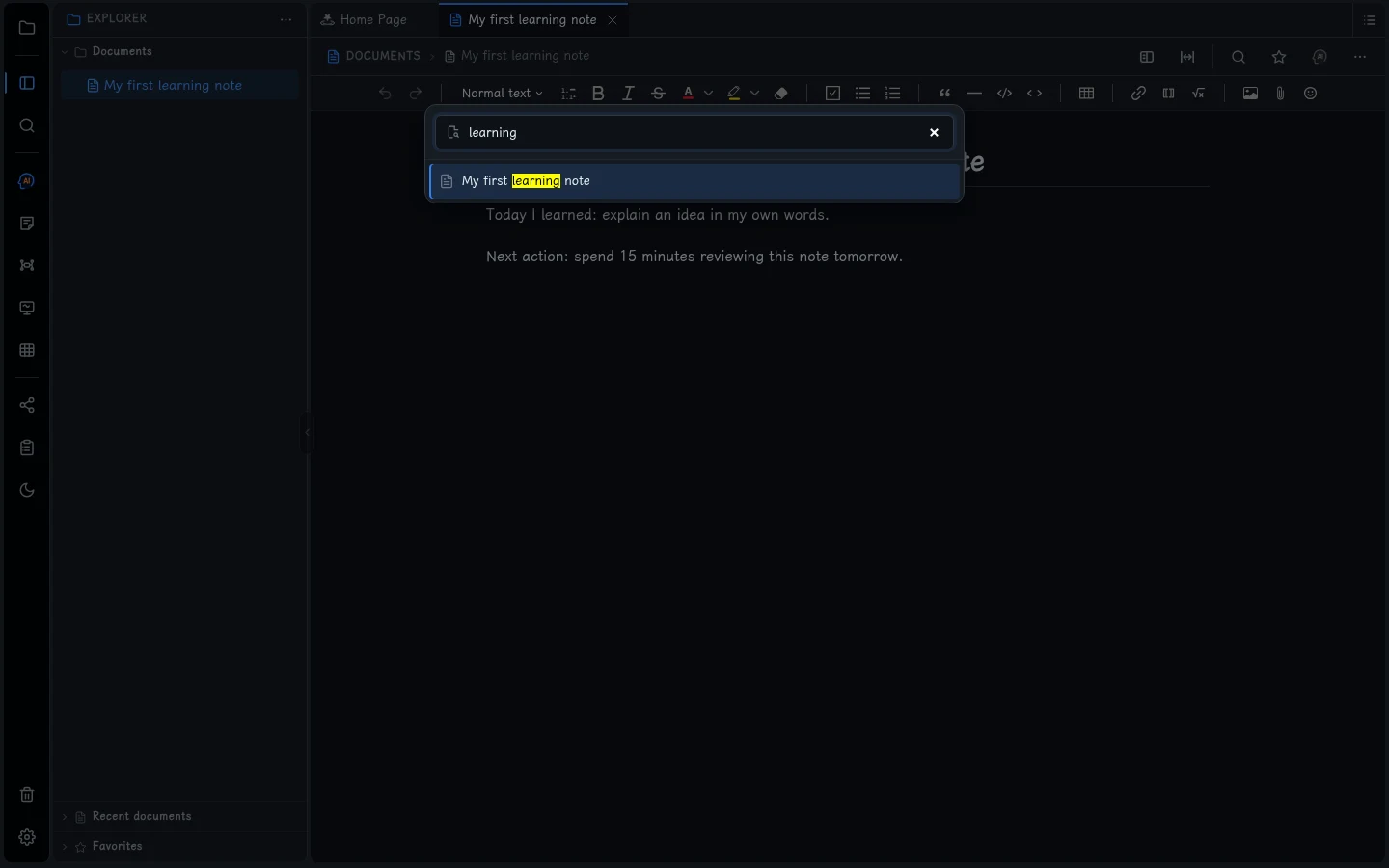
- Press Ctrl + P to open Quick open.
- Type learning. Your saved note should appear by filename.
- Select My first learning note and press Enter. Confirm that both lines are present.
Quick open is a filename lookup. For words inside notes, use the magnifying-glass menu and its text-search option. Local writing and filename lookup do not require an AI API key.
6. Optional: ask about a note with AI
You can finish this tutorial without AI. To try it, open Settings and the model configuration section, configure your provider’s API endpoint, API key and model, and save. Provider usage fees are separate from the Fluid Wiki license.
- Open a note, then click the AI assistant icon in the left activity bar.
- Choose the current-document context and ask, for example, “Summarize this note in three points.”
- Compare the answer with your note. Review any proposed edits before accepting them.
Prompts and related content are sent to the model service you select. Local file storage does not make online AI offline. Semantic search and semantic graph connections need an available embedding configuration; they are not required for the earlier steps.
7. Keep a backup and continue
- Save your work. Use Vault → Vault management → Current vault → Open vault folder to locate the data folder.
- Close Fluid Wiki, then copy the entire vault folder to your backup location, including hidden files and subfolders. Do not copy only the note you just wrote.
- Keep the backup separate from your working copy. To check it, open a separate copy via Open local vault… and confirm the note is present.
You now have a local knowledge base, a saved note, a way to find it, and a backup. Next, try a sticky note for a quick idea or a whiteboard for a visual outline.
If something looks different
- No sample note? Check the app language and reopen Sample Vault; the English title is in the English sample, not your new empty vault.
- Cannot create or edit? Check Settings → License and the write permissions of your vault folder. An expired trial still permits reading and export.
- Cannot find the note? Check which vault is open. Search results belong to the current vault.
- AI does not answer? Check the selected provider, API key, model and connection. Your local notes do not require a working AI connection.
For help, email wenfh20@gmail.com with your app version, the step that failed and the error text. Do not include your API key or activation code.
Screenshots show the real app interface with the English sample and a separate practice vault. Select an image to view it full size. Windows desktop uses the system folder picker; window borders may differ.